

Creating a Newsletter Campaign
This guide explains how to create a professional newsletter campaign in Sender using the drag and drop email builder feature. It shows where to find it, how the setup process works, and what happens after saving.
Learn more: https://www.sender.net/free-newsletter-creator/
Where to Find This Feature
In the Sender dashboard, go to:

Email campaigns → New campaign → Settings → Design → Select Drag and drop builder
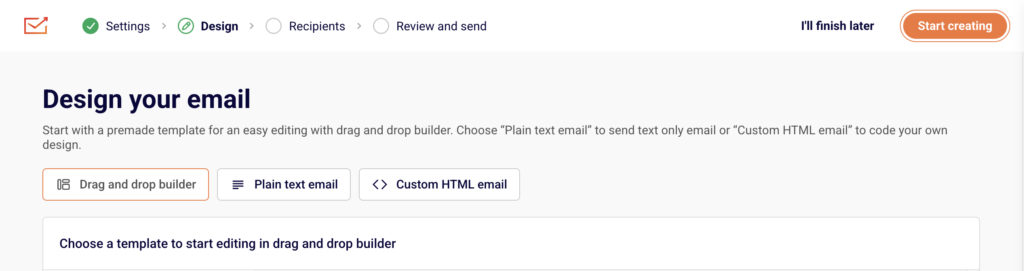
Steps to Create a Newsletter Campaign
Step 1 — Configure Basic Campaign Settings
Start by entering your Email subject line, which will appear in your subscribers’ inboxes. Add optional Email Preview text below the subject to give a sneak peek of your email content. Fill in the Sender details section with your From name and confirmed Sender’s email address.
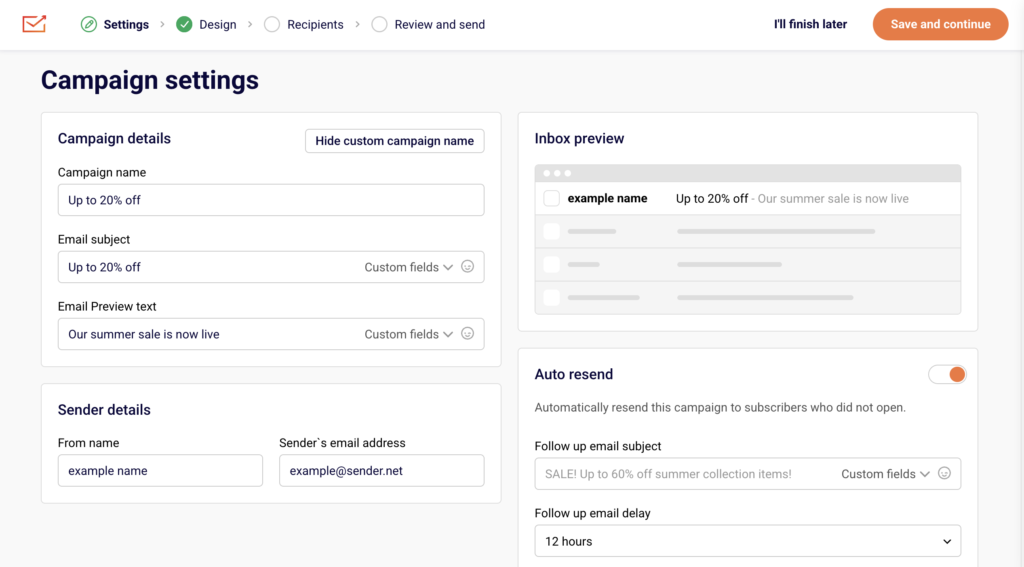
You can also enable Auto resend to automatically retry delivery to unopened emails. Once complete, click Save and continue to move to the design phase.
Step 2 — Choose Your Design Method
On the Design page, select the Drag and drop builder tab to access the visual email builder. Browse the template library organized by category (All templates, Branded templates, Themed templates, etc.) or choose a Blank template to start from scratch.
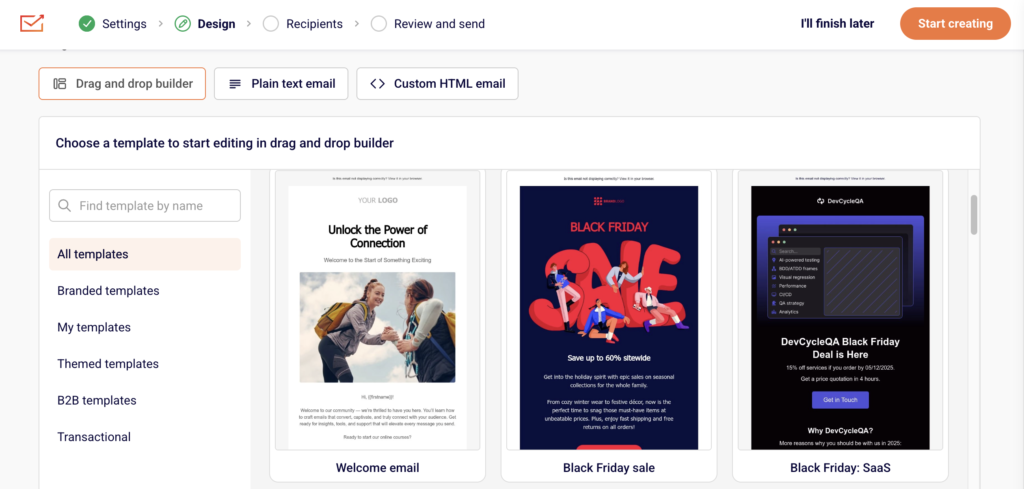
Click on your preferred template to preview it, then click Start creating to open the editor.
Step 3 — Design Your Email Content
In the drag and drop builder, use the left sidebar tools to add and customize content blocks. You can add text sections, images, buttons, dividers, and other elements by dragging them into your email canvas.
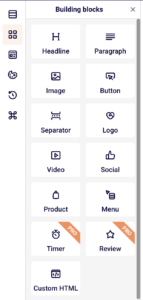
Edit existing template content by clicking on blocks and modifying text, colors, fonts, and alignment. Preview your changes in real time. The builder automatically saves your work as indicated by the Changes saved indicator. When satisfied with your design, click Save & continue.
Step 4 — Select Your Recipients
On the Recipients page, review the Selected recipients counter at the top. Choose your audience by checking boxes for All active subscribers, specific Groups/segments (like “New subscribers” or “Engaged subscribers”), or create custom audience filters.
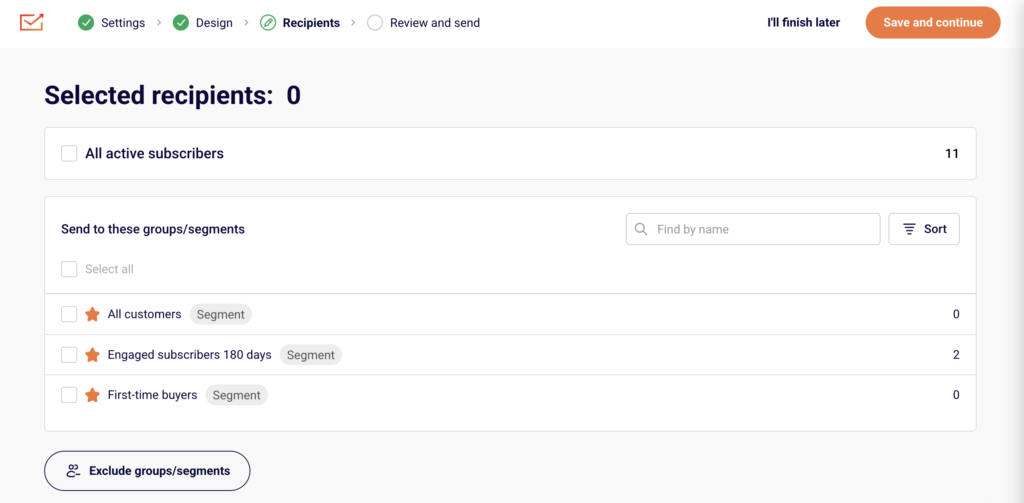
The count updates automatically to show how many subscribers will receive the campaign. You can also use Exclude groups/segments to remove certain subscribers from your send. Once your audience is selected, click Save and continue.
Step 5 — Review and Send
On the final Review and schedule page, check Tips & Suggestions for recommendations on improving your campaign, such as fixing placeholder links or adding preview text. Review your email settings, sender details, and recipient count in the collapsible sections.
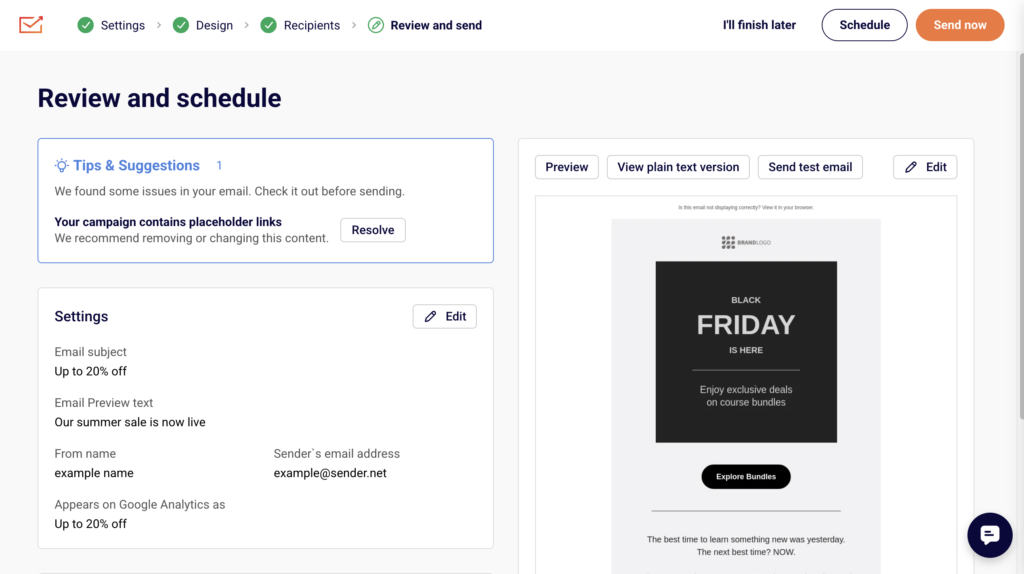
Click Preview to see how your email renders, or Send test email to verify it reaches your inbox correctly. Choose Send now to deliver immediately or Schedule to set a specific send time.
What Happens After You Save
After saving your campaign, it appears in your Email campaigns list with a status of DRAFT. You can continue editing by clicking the pencil icon, or proceed through the workflow steps using the progress indicators at the top. Performance data including delivery, opens, and clicks becomes available in the campaign’s Stats section after the campaign is sent.
Common Issues
“Email subject is required” → The Email subject field must have content. Go back to Settings and add a subject line, then save again.
“No recipients selected” → You must select at least one audience group or segment. Check the boxes next to your target groups on the Recipients page.
“Placeholder links in campaign” → The builder warns you about unresolved links. Go back to Design and replace placeholder URLs with real destination links.
Email not previewing correctly → Click “View it in your browser” to check rendering in different email clients. Test across devices before sending.
FAQs
Can I use my own HTML code instead of the drag and drop builder? Yes. On the Design page, select the Custom HTML email tab to paste or write your own code. You can also select Plain text email for text-only campaigns.
How do I save my design as a template for future use? In the drag and drop builder, look for options to save your current design. Custom templates appear under “My templates” in the template library for quick reuse.
Can I schedule a campaign to send at a specific time? Yes. On the final Review and schedule page, click Schedule instead of Send now to choose your preferred send date and time.
What happens if I click “I’ll finish later” during setup? Your campaign saves as a draft and returns to your Email campaigns list. You can resume editing anytime by clicking the campaign name or the pencil icon.
Can I send a test email before the official send? Yes. On the Review and schedule page, click Send test email to verify how your newsletter looks in your inbox before sending to all recipients.