

Handling Overlapping Segments During Campaign Sending
This guide shows how to handle overlapping segments when sending an email campaign in Sender. It covers how to identify overlaps, use exclusions, and ensure each subscriber receives your campaign only once.
Where to Find This Feature
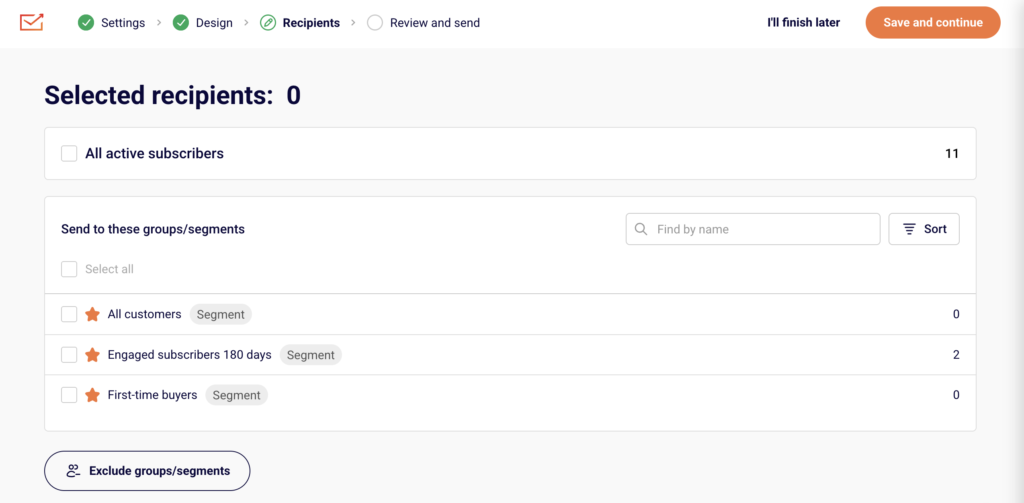
In the Sender dashboard, go to: Email campaigns → select a campaign → Recipients
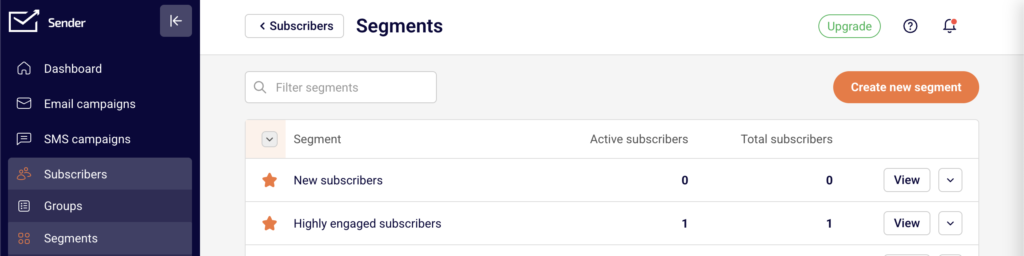
To manage segments before applying them, go to: Subscribers → Segments
Steps to Handle Overlapping Segments
Step 1 — Review Your Segments for Overlap
Go to Subscribers → Segments to view your existing segments. Each segment shows its Active subscribers and Total subscribers count. Click View on any segment to see the matching subscribers and the filter conditions applied.
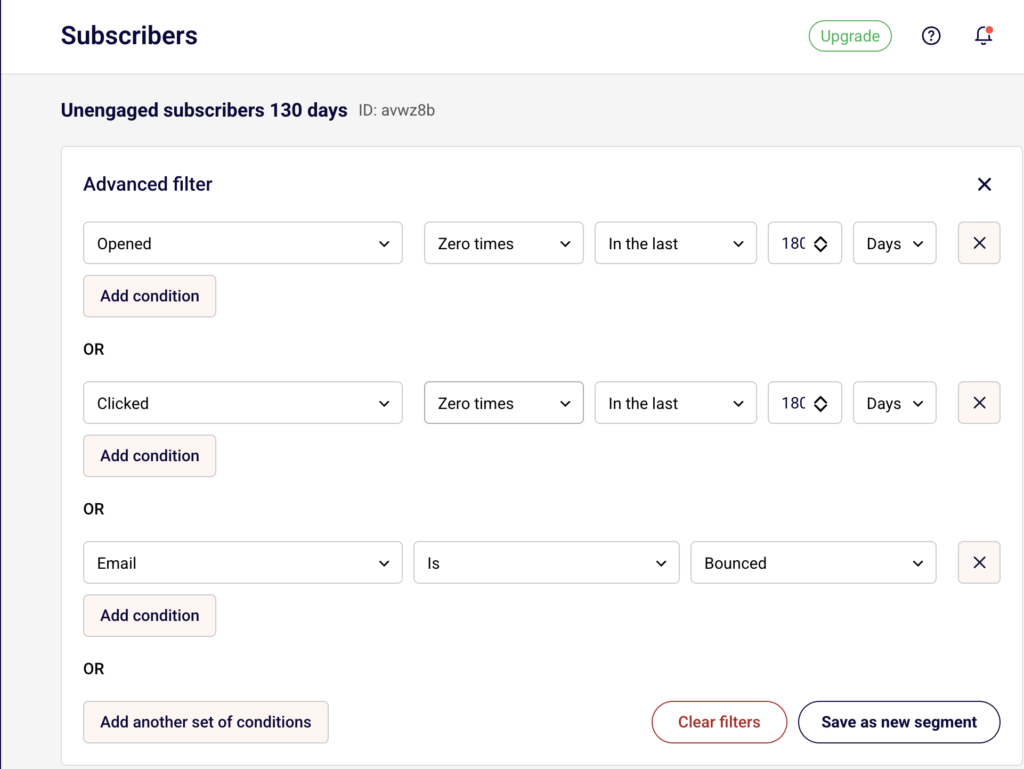
If subscribers appear across multiple segments (for example, a subscriber is both a “New subscriber” and an “Unengaged subscriber”), those segments overlap.
Step 2 — Select Target Segments in the Campaign
Open your campaign and navigate to the Recipients step. Under Send to these groups/segments, check the boxes next to each segment or group you want to include.
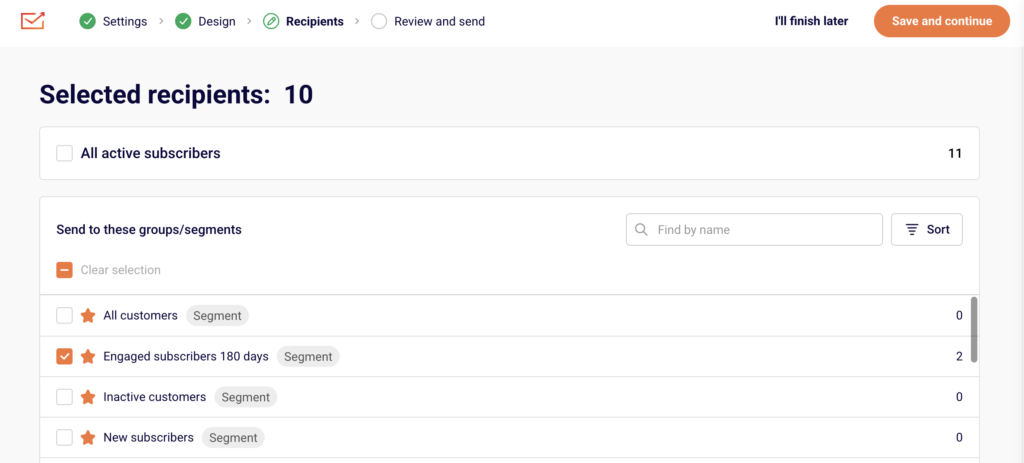
The Selected recipients counter at the top updates automatically and shows the deduplicated total. Even if the same subscriber exists in multiple selected segments, Sender counts them only once.
Step 3 — Exclude Overlapping Segments You Want to Skip
Below the inclusion list, click Exclude groups/segments to expand the exclusion panel.
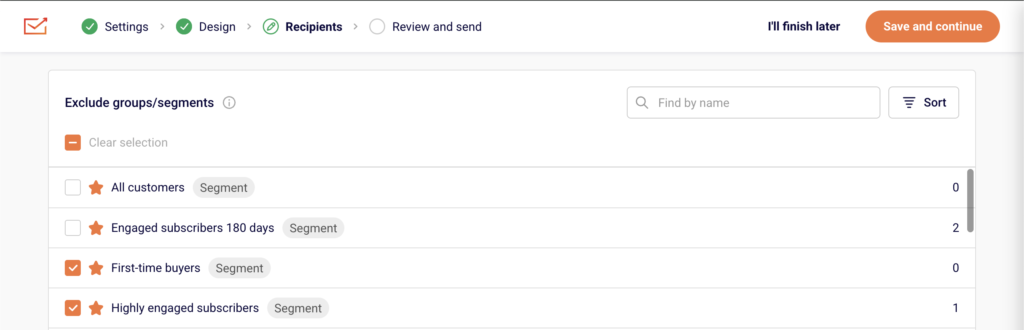
Check the box next to any segment or group whose subscribers should not receive the campaign. Excluded subscribers will be removed from the send list even if they belong to a selected group above. Use the Find by name search bar or Sort to locate specific segments quickly.
Step 4 — Verify Recipients on Review and Send
Click Save and continue to reach the Review and send step. The Recipients section lists every selected group and segment with its individual count, followed by a Total subscribers number.
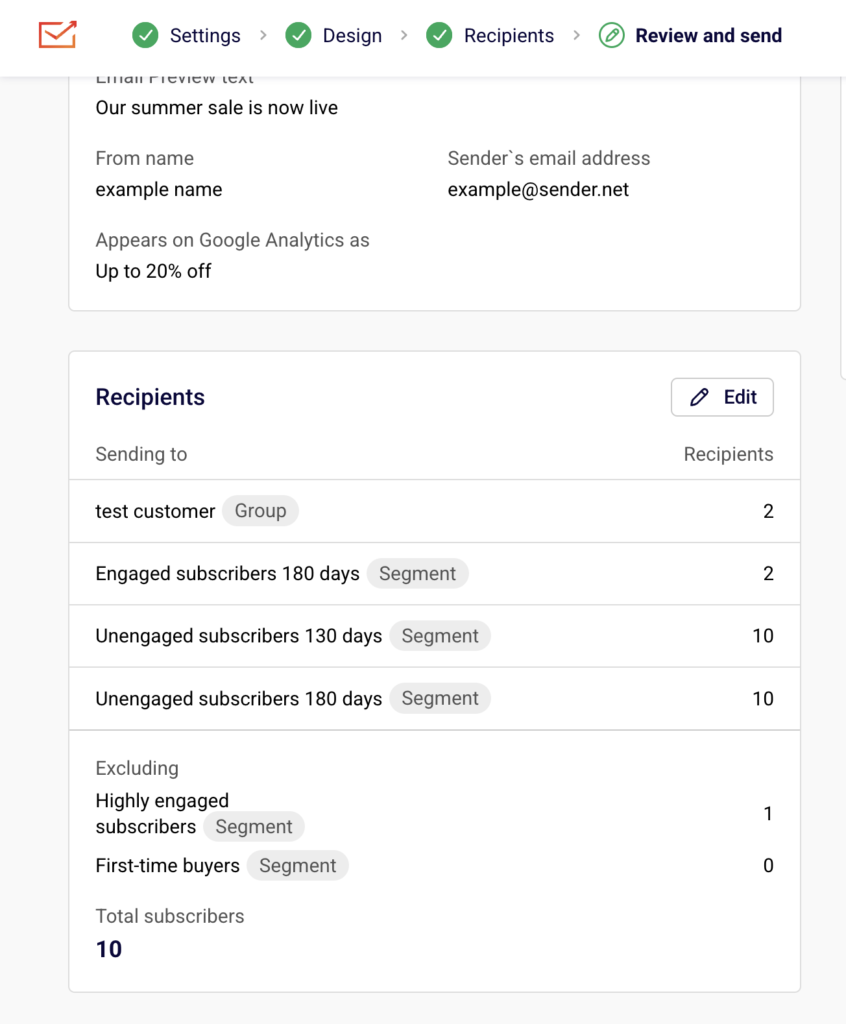
This total reflects the deduplicated count after exclusions. If the number looks incorrect, click Edit next to Recipients to return and adjust your selections.
What Happens After You Save
After saving your recipient selections, the campaign displays the final audience on the Review and schedule page. You can still adjust included or excluded segments by clicking Edit next to the Recipients section. The Total subscribers count always reflects unique subscribers only — no one receives the same campaign twice regardless of how many selected segments they belong to.
Common Issues
Selected recipients count seems too low — Sender deduplicates subscribers across all selected segments and groups. The total reflects unique recipients, not the sum of each segment’s count.
A segment is missing from the exclusion list — Segments already checked in the Send to these groups/segments section are automatically removed from the Exclude groups/segments list. Uncheck the segment from the inclusion list first if you need to exclude it instead.
Excluded subscribers still received the campaign — Confirm the correct segment was checked in the Exclude groups/segments panel before sending. Exclusions only apply to segments selected at the time of the send.
FAQs
Does Sender send duplicate emails to subscribers in multiple segments?
No. Sender automatically deduplicates recipients. Each subscriber receives the campaign only once, even if they appear in several selected segments or groups.
Can I include one segment and exclude another at the same time?
Yes. Use the Send to these groups/segments section to include and the Exclude groups/segments section to exclude. Exclusions override inclusions — any subscriber in an excluded segment is removed from the final send list.
How do I check which subscribers overlap between segments?
Go to Subscribers → Segments, click View on each segment, and compare the subscriber lists. You can also create a new segment using Add condition with multiple filter rules to isolate the overlapping group.
Can I save a modified segment as a new one?
Yes. When viewing a segment’s filters, click Save as new segment to create a separate segment based on the adjusted conditions without changing the original.